Tasklet Teams FAQ
Everything you need to know about agents, team setup, billing, and permissions in Tasklet. For detailed docs on how organizations, agents, and knowledge work, see our Guide.
Getting started
How do I invite team members?
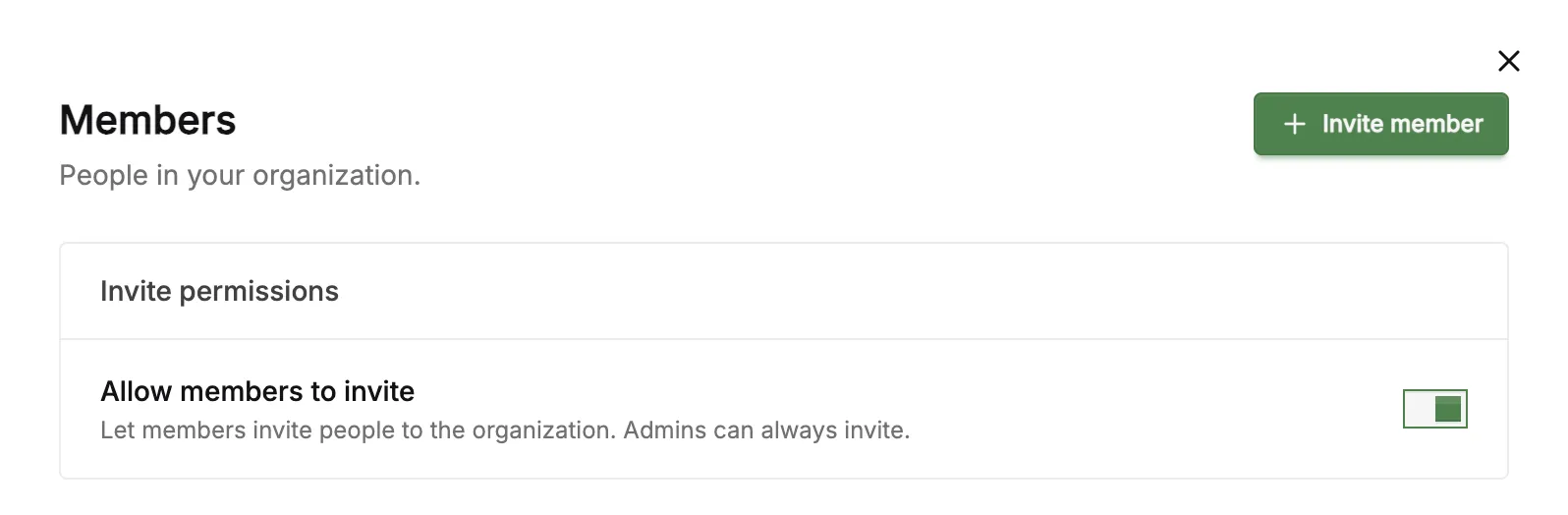
Go to Settings > Org > Members and invite them to your organization.
How do I create an agent for my team?
Select New agent in the agent rail. It starts with only you as a member. You can optionally add team members who are already part of your organization while creating it or later from its member settings.
All agent members can collaborate on threads, apps, and connections in that agent.
What happens to my existing threads when I create another agent?
Your existing threads remain in their current agent and are visible to that agent’s members.
Agents are completely separate from one another. Threads, connections, and data within an agent are visible only to that agent’s members. An agent with only you as a member remains accessible only to you.
Can I be part of multiple organizations?
Yes. You can belong to several orgs on the same account and switch between them by clicking your account avatar in the bottom left corner.
How agents work
Is there a limit on the number of agents?
No. You can create as many agents as you need. This is useful if you want separate agents for different business units, clients, or projects. Create agents with New agent in the agent rail, and manage them from Settings → Agents.
Can I move a thread from one agent to another?
There’s no direct “move thread” button right now, but here’s a simple way to move threads:
- Ask in your thread: “Export everything about yourself into a ZIP file so I can recreate you in a new thread. Include all your files, database, automation and connection configs, and a detailed README explaining everything you’ve learned and how you work.”
- Create a new thread in the target agent and share the ZIP: “Set up a thread based on this ZIP file. Set up all the necessary connections and ask me any clarifying questions.”
How do I share an existing agent?
Add another organization member by selecting Private to you — share in the header or from the agent’s member settings. They will gain access to all threads, connections, and data in that agent, so only add people you trust with its existing contents.
No conversion or support request is needed.
Billing
How does billing work for teams?
There are no per-seat charges. Your whole team shares one credit pool, so inviting a new member doesn’t directly add cost. You pick a plan, everyone uses it, and you can set limits per person or agent if you want to keep things predictable.
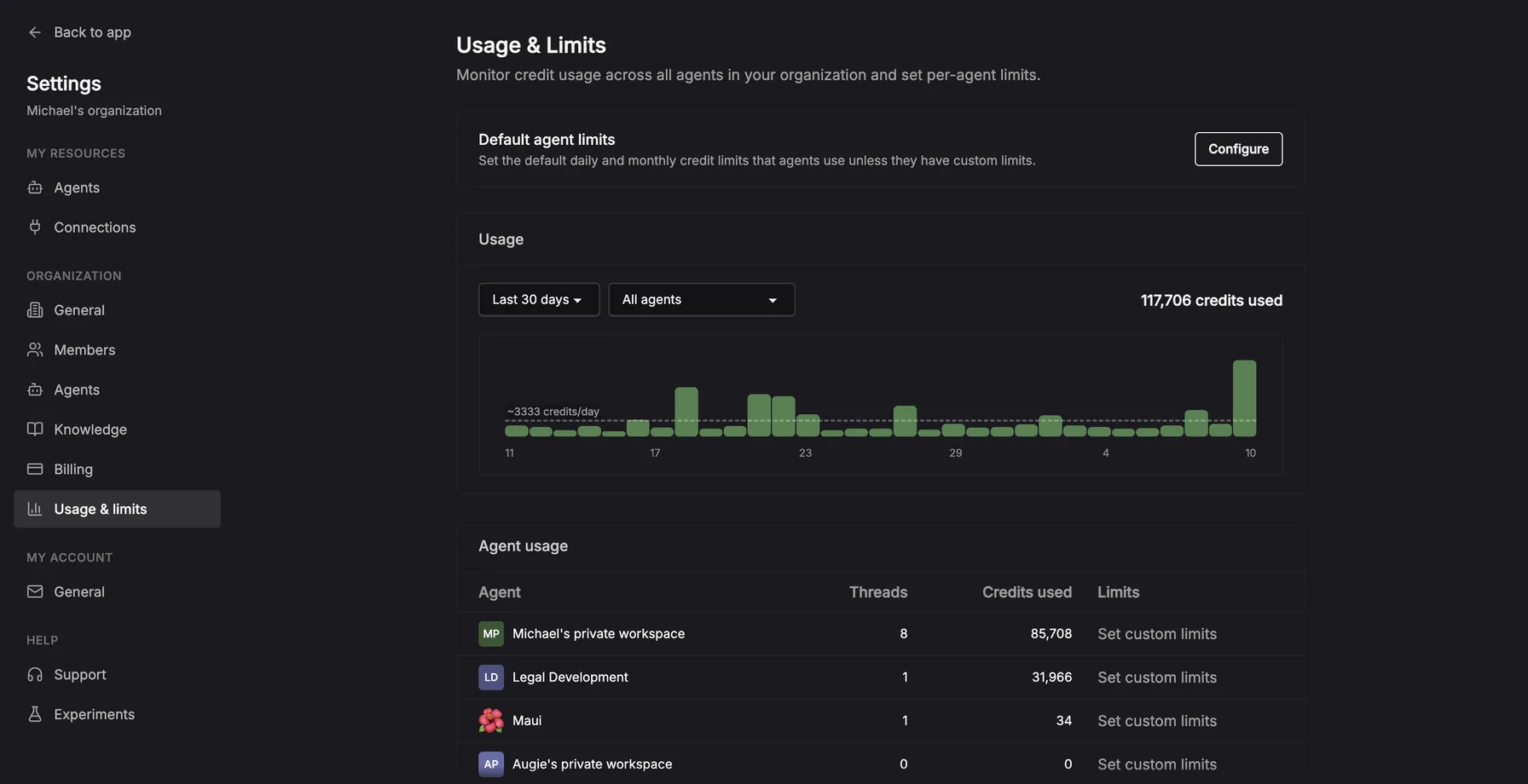
Billing is managed at the organization level, and all agents under your org draw from the same pool. You can view your per-agent usage breakdown and set custom limits at Settings > Org > Usage & limits.
Can I control how much each team member spends?
Yes. Admins can set custom usage limits for agents to keep spend predictable as the team scales. You can configure this in Settings > Org > Usage & limits.
What if I need more credits than the max plan allows?
Many of our larger teams and enterprise customers operate beyond the limits of our standard plans. If you need additional credits, reach out to support@tasklet.ai and we’ll work with you to set up a custom recurring plan tailored to your usage. Charges are billed directly to your payment method on file.
One-time credits add capacity without starting or changing a monthly subscription. You can purchase them from our pricing page.
Agency and client setup
How should my agency set up agents for clients?
For most agency engagements, we recommend building directly within the client’s Tasklet organization rather than managing client automations from your own account.
Recommended setup:
- The client creates a Tasklet account and organization
- The client creates an agent and invites your team
- The client connects their apps, data sources, and tools within that agent
- Your agency starts and configures threads in the agent
- When the project is complete, your agency can simply remove itself while the client retains full ownership
This approach ensures the client owns their data, connections, billing, and automations from day one. It also makes handoff straightforward, allowing your agency to deliver a complete solution without needing to transfer assets later.
How do clients connect their own integrations without sharing passwords?
The only way for clients to set up their connections securely is for them to do it themselves from within a Tasklet thread. Here’s how:
- Add them as a member of your org at Settings > Org > Members
- Open the agent and select Private to you — share in the header—or the member avatars if the agent is already shared—to add them
- They log in and connect their own accounts through the thread’s connection flow (OAuth, API key, etc.)
This keeps their credentials private. You never need to see their passwords.